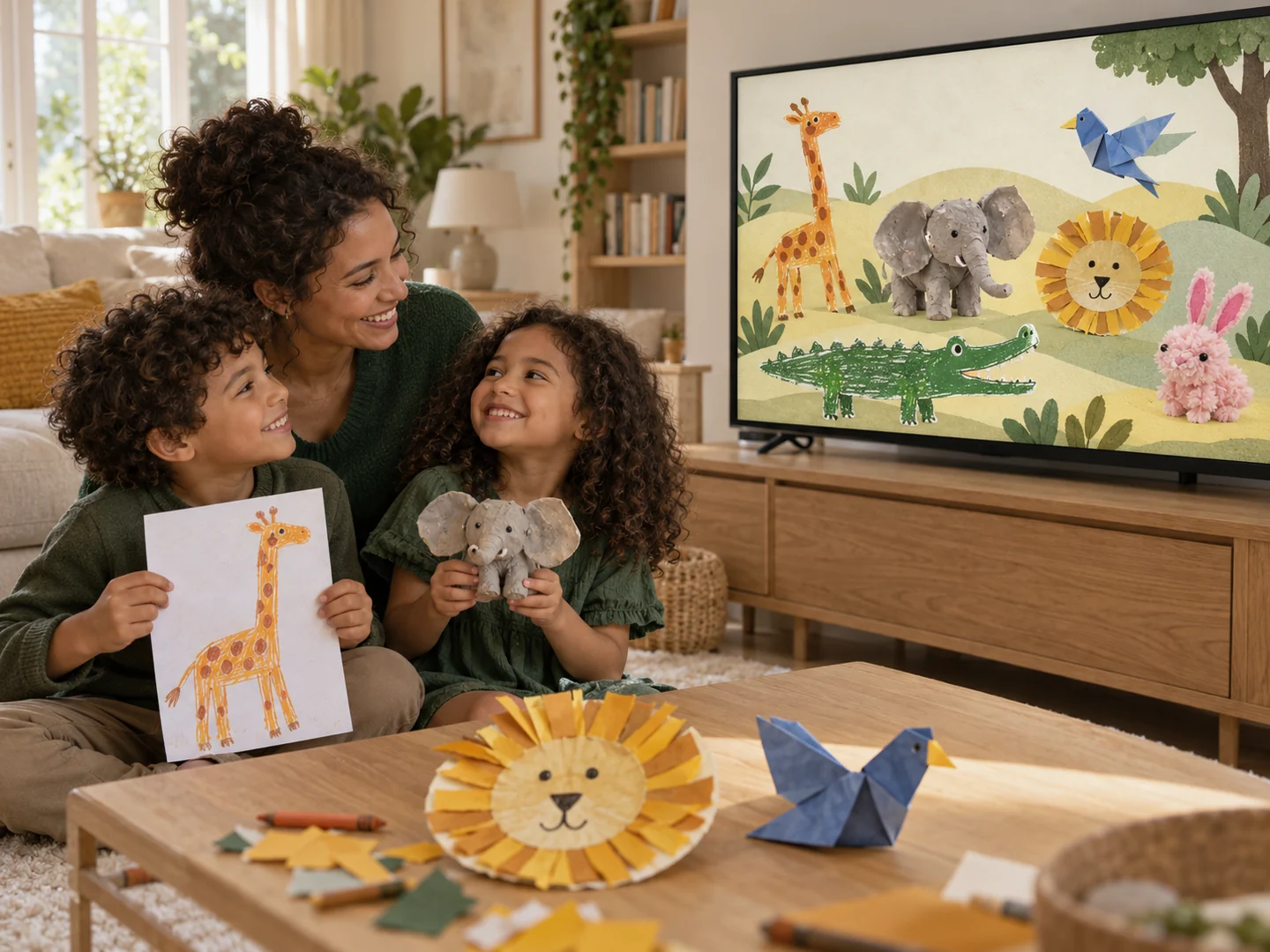
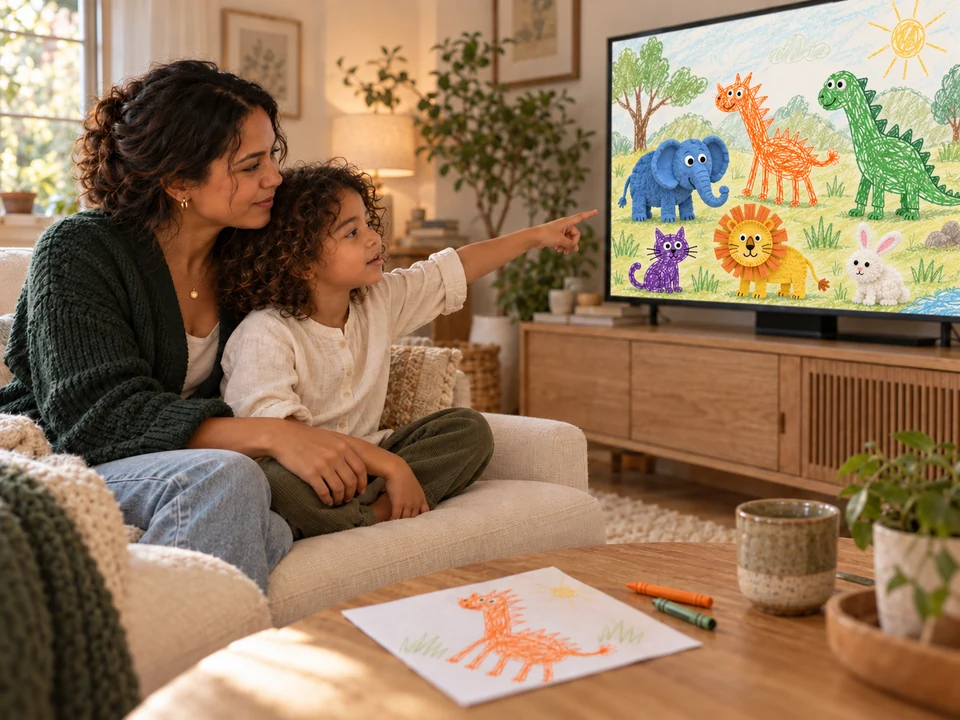
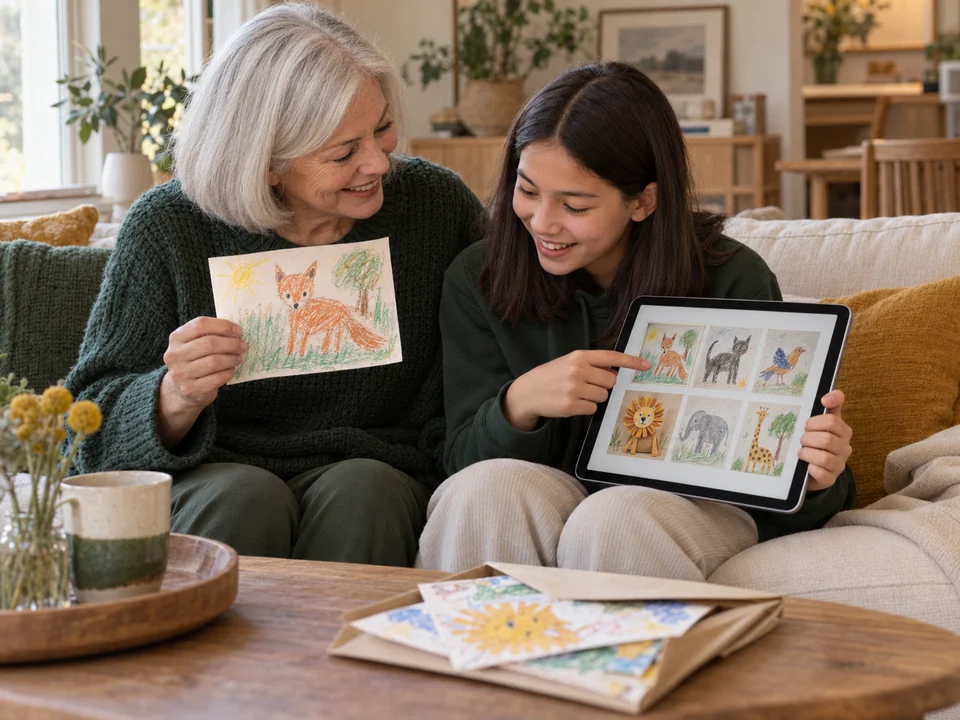
Giggly Zoo turns photos of your child’s drawings and crafts into characters that move around on screen: a zoo your family fills together. The original photo is saved too, and you can write down your child’s story beside it. Watch on an iPad, or mirror it to a compatible TV.
Photograph the artwork, remove the background, and choose how it moves. Your character joins a zoo on your screen, with the original photo saved too. Watch on an iPad, or mirror it to a compatible TV.
Mom: Hold it up for me?
Daughter: I made a giraffe!
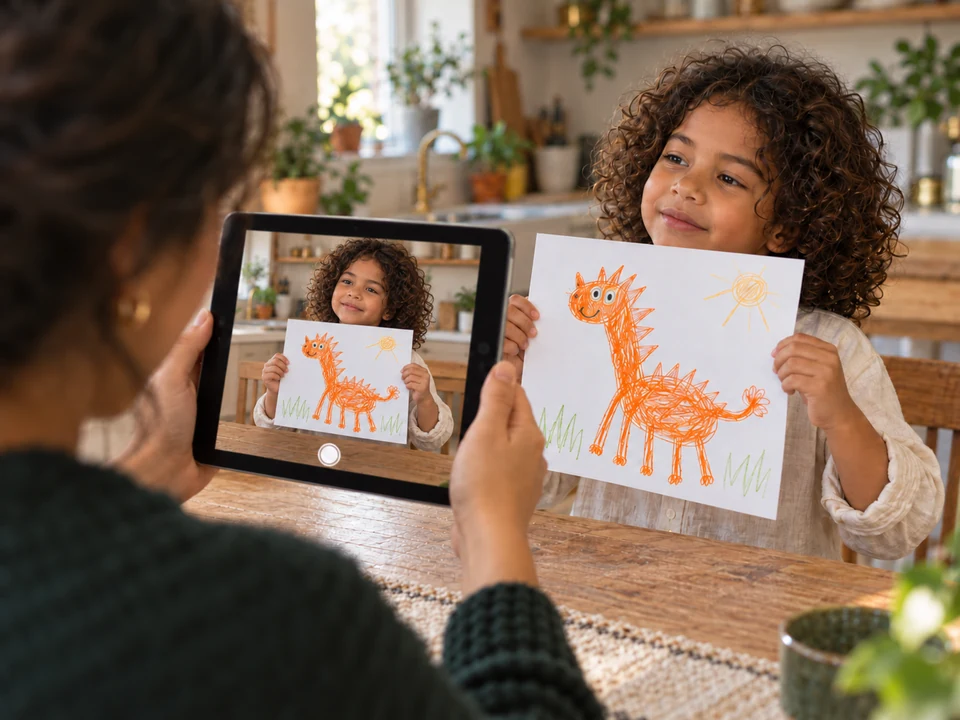
01 Take a photo
Photograph the drawing or craft.
A scribble, a paper dragon, a cat with seven legs. Use your tablet or phone camera, or choose a photo you already have. A plain, light background works best.
Mom: Ready to join the zoo?
Daughter: Let’s call her Ziggy!
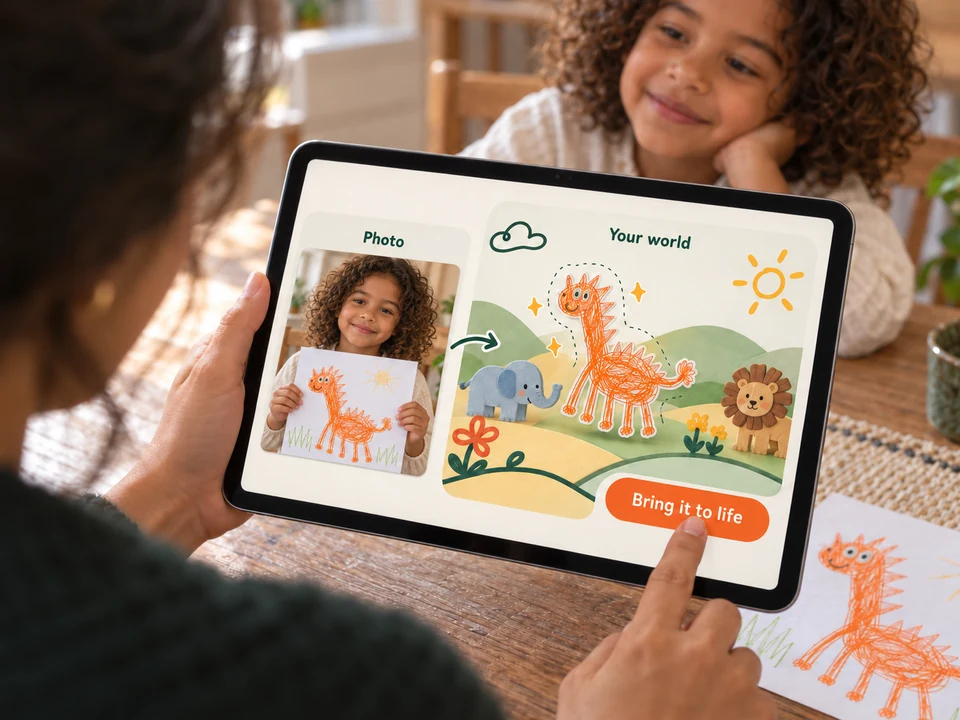
02 Make the cutout
Make a cutout. Give it a name.
The app removes the plain background so only the artwork remains. You can adjust this or keep the whole photo. Type a name, choose how it moves, and tap “Bring it to life” to add it to your zoo.
Mom: Who lives here now?
Daughter: Dinosaur roar!
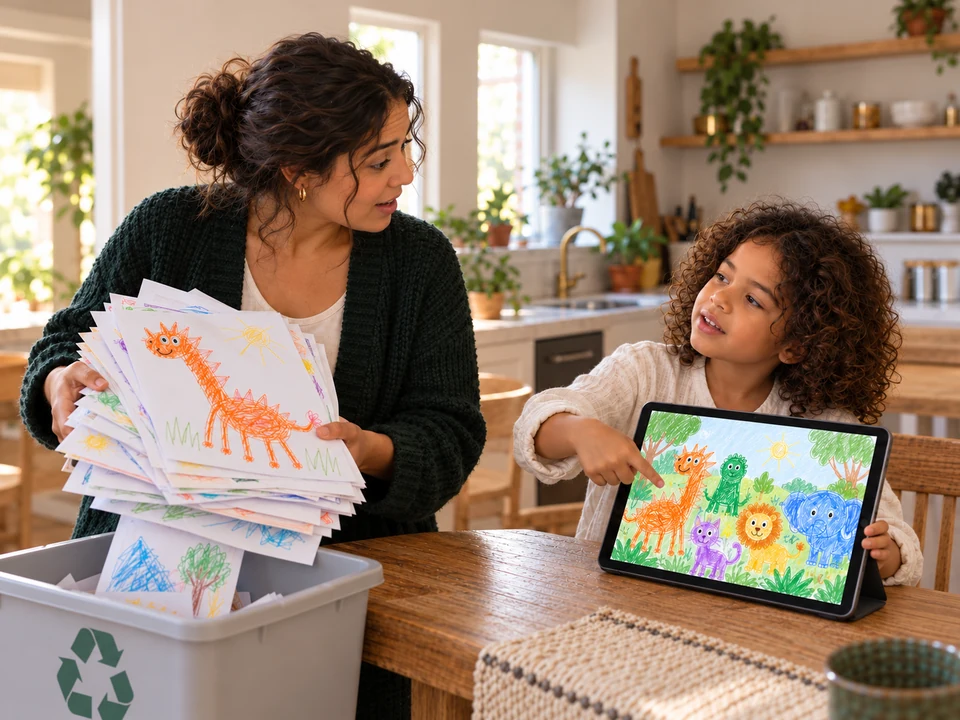
03 Watch together
Watch your characters move.
The characters wander, hop, or float around the zoo on their own. Watch on an iPad or computer, or mirror the screen to a compatible TV. Add another drawing whenever you like.
Mom: Can we recycle these?
Daughter: Sure—we have them all in my zoo!
04 Keep the original photo
Save the photo. Recycle the paper.
Every creation keeps its original photo, name, date, and any story you write. Find them again any time in the keepsake box, the list of everything you have saved.
Why keep the photos
Let the paper go. Keep the photos.
Photograph the artwork now and write down what your child said about it. Look back at it together later, and download the originals for your own backup.
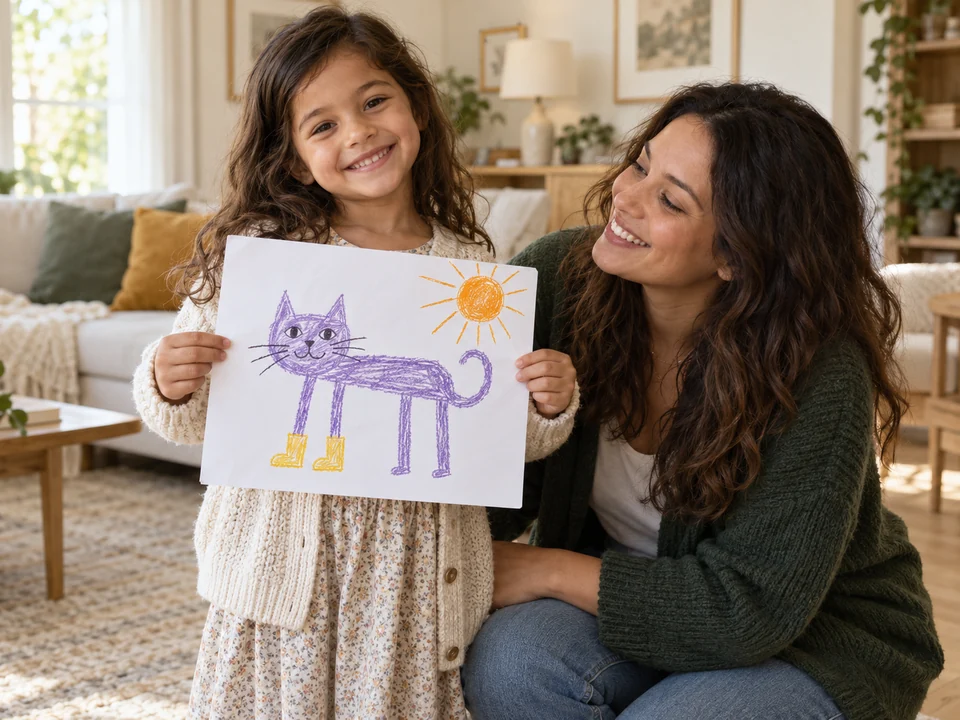
Daughter: Look what I made!
Mom: Tell me its story.
At six
“Look what I made!”
You photograph the drawing and write down the story she tells you about it. Both are saved together.
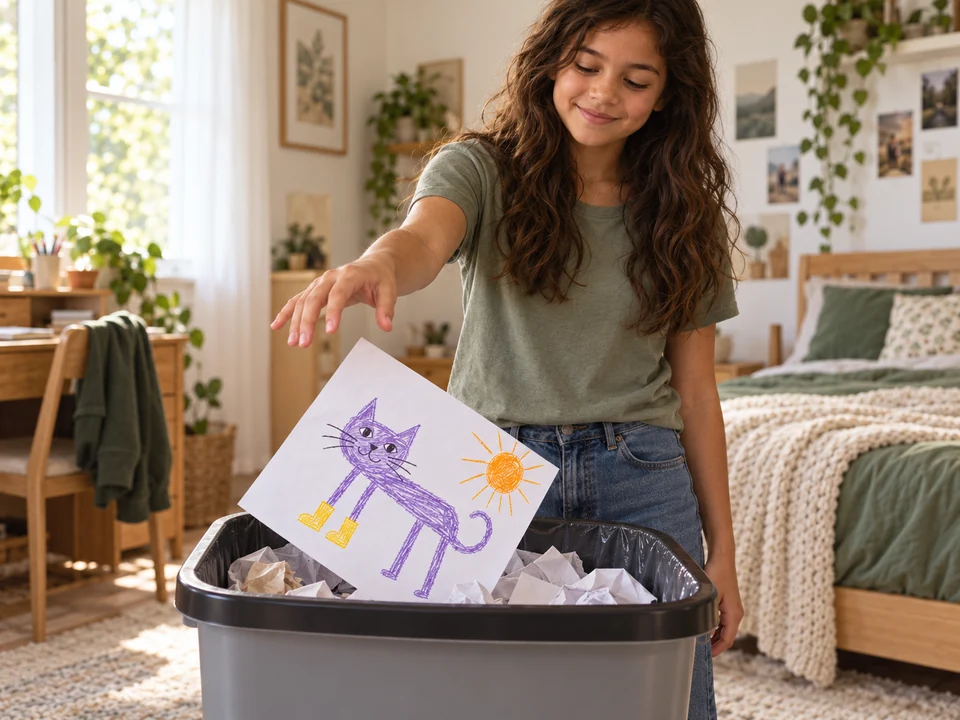
Teenager: It’s okay. We saved it.
As a teenager
The paper goes in the bin.
They clear out their room. The old drawings go in the bin. The photos you saved don’t have to go with them.
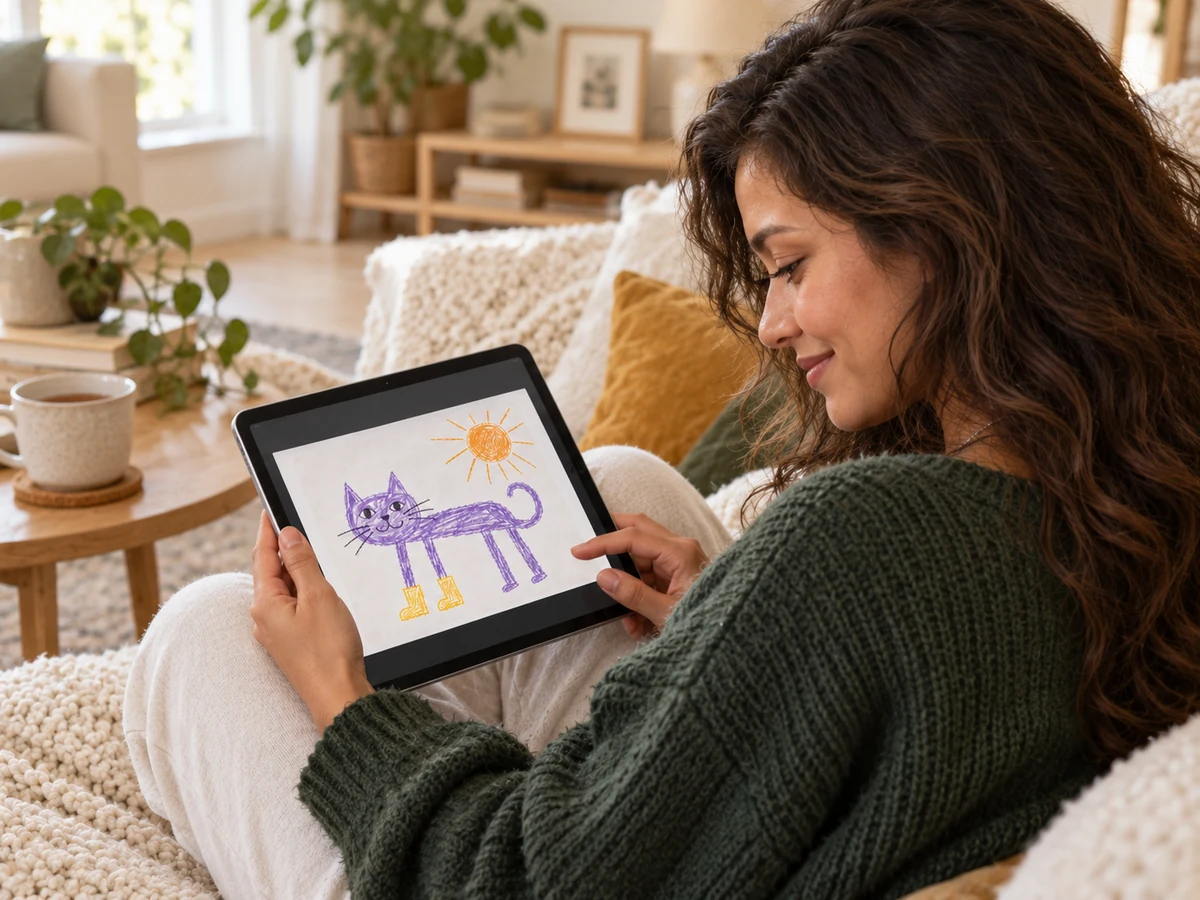
The artist, years later: I remember drawing this.
Years later
“I remember drawing this.”
She finds her childhood cat among the saved photos, with the story she told at six still beside it.
Keep the photos. Keep making art.
Each saved creation keeps the original photo, the artist’s name, the date, and the story you write. You can download the original photos at any time for your own family backup.
Original photo, name, date, and story kept together
Open your zoo on an iPad or computer and scan its QR code with your phone. Take a photo, then add it to the zoo on the bigger screen. Your phone can upload without signing in. Each code works for 15 minutes.
Open the demo zoo together on a screen. Ask the children what happens next for each character, then make something new with paper and crayons. Each Giggly Zoo account is managed by one adult; there are no classroom accounts, student logins, or shared class administration.
No credit card. Children do not need their own login.
What’s included
Up to 100 saved creations
500 MiB of storage for original photos and cutouts
Child profiles with nicknames, stories, and original photo downloads
QR codes for adding photos from your phone
A parent creates and manages the account. Only that signed-in account can see its photos and characters; there is no public gallery. Background removal happens in your browser, and this release does not send your photos to AI services. Read our privacy notice.
The zoo is a screen in the app where your characters live. Each character is a cutout made from a photo of a drawing or craft your child made. The characters wander, hop, or float around a painted background, and you can tap or drag them. It is not a game with levels, and it is not public: only your signed-in parent account can open it.
How do I add a drawing or craft?
Take or upload a clear photo of it. The app removes the plain background in your browser to make a cutout. If too much or too little is removed, adjust the strength or keep the whole picture. Give the character a name, choose how it moves (wander, hop, float, or stay put), and select Bring it to life. A plain, light background gives the best result.
Can I use my phone camera?
Yes. Open your zoo on an iPad or computer and it shows a QR code. Scan the code with your phone camera, take or choose a photo on the phone, and the new character appears in the zoo on the bigger screen. The phone does not need to sign in. Each code lasts 15 minutes and allows 20 upload attempts. Anyone with the link can add photos while it is active, but they cannot see your artwork.
Can we watch it on an iPad or TV?
On an iPad, open Giggly Zoo in the browser. For a TV, use your device’s screen mirroring with a compatible TV. Mirroring is set up on your device; Giggly Zoo has no built-in Cast button. Keep your phone nearby to photograph the next creation.
Who can see our photos and characters?
Only someone signed in to your parent account. There is no public gallery and no link for sharing a zoo. A phone QR code lets the holder add photos for 15 minutes, but not browse your saved photos or characters. Background removal happens in your browser, and this release does not send your artwork to AI services. You can download the original photos and delete creations at any time.
What is the keepsake box?
The keepsake box is the list of everything you have saved: for each creation, the original photo, the cutout, the name, the date, and the story you wrote. You can hide a character from the zoo and it stays in the keepsake box. From there you can download the original photo or delete the creation for good.
Is it really free?
Yes, while Giggly Zoo is in early access. Each family account can save up to 100 creations and 500 MiB of files, counting original photos and cutouts. There is no credit card or payment step. If paid plans are introduced later, we will explain them before you choose one.
Does my child need an account?
No. One parent or guardian creates and manages the account, and children use it together with you. They need no email address or login. You can add child profiles with nicknames so each creation shows who made it. Each parent account has its own separate zoo. Shared access between accounts and classroom accounts are not available.
Can I use it with a class?
You can open the public demo on a classroom screen for an adult-led storytelling activity. Accounts are individual and adult-managed: there are no school accounts, student logins, or classroom tools. Get parent or guardian permission before uploading a child’s artwork.
What families use it for
Make art together. Look back together.
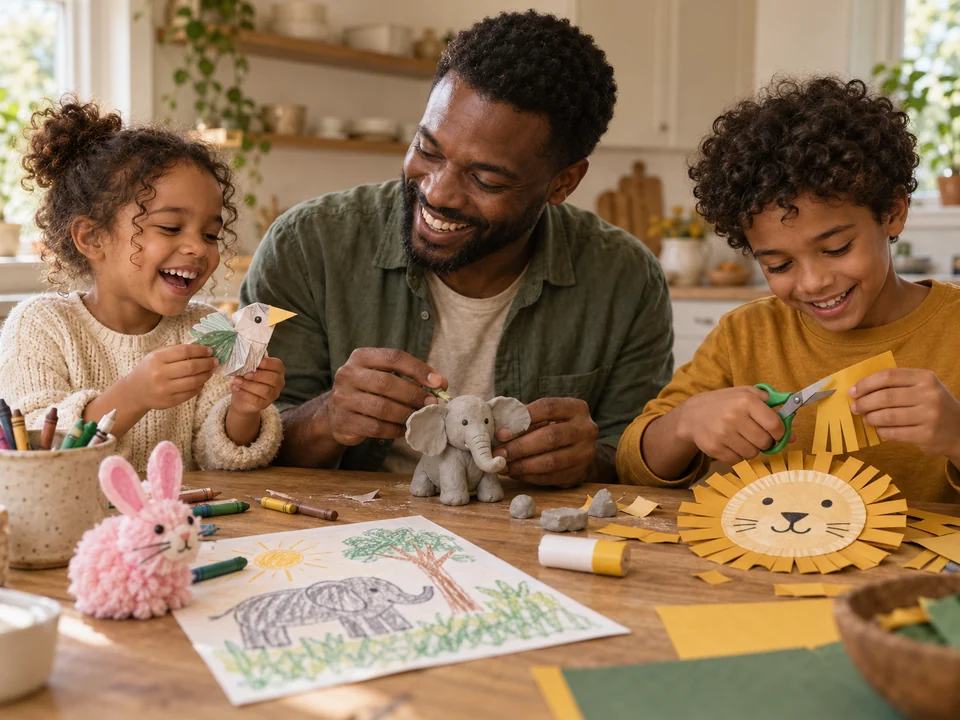
Drawings and handmade crafts
Drawings. Crafts. All welcome.
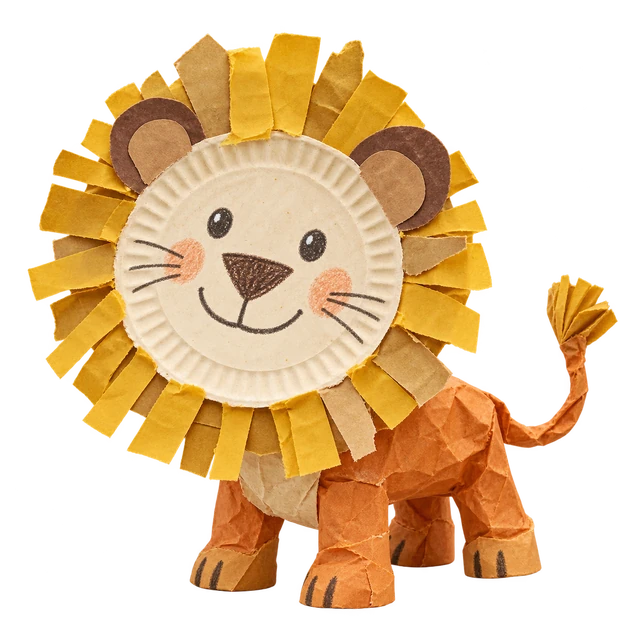
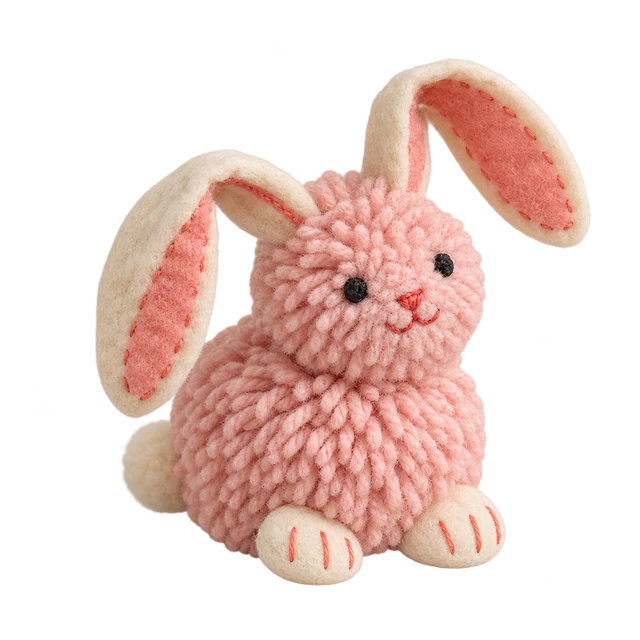
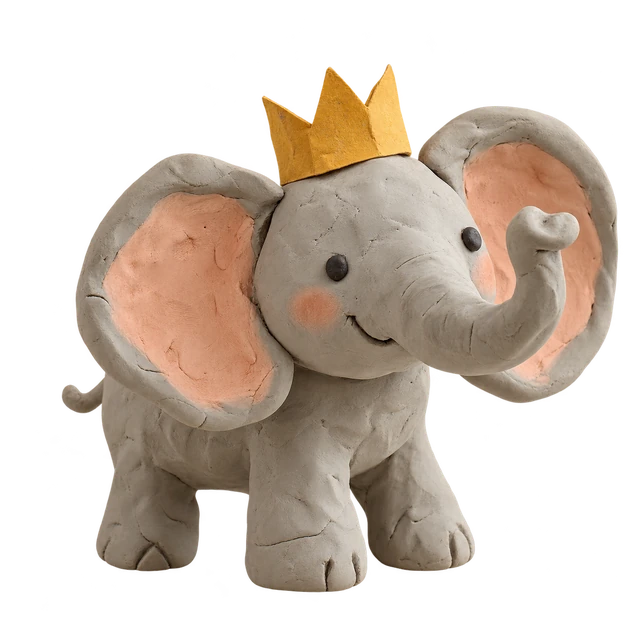
A drawing from the kitchen table, a clay animal, a creature made from a paper plate. Anything you can photograph on a plain background can become a character, and they all live in the same zoo.
Looking back together
“Remember when you made this?”
Open the keepsake box with grandparents and find the seven-legged cat from years ago. Each photo keeps the artist’s name and the story you wrote, so there is more to talk about than the picture alone.